Tables
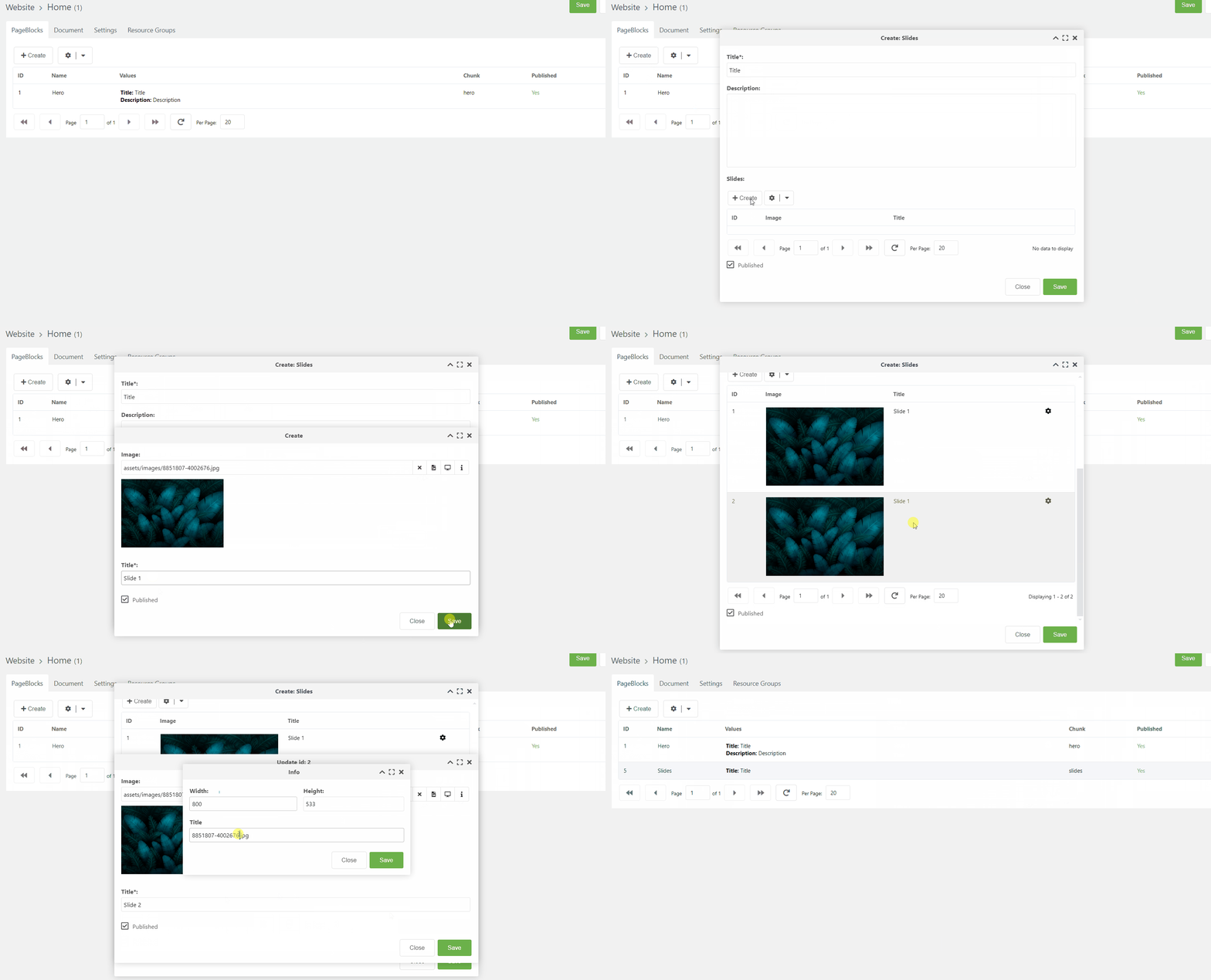
A repeating structure inside an object: slides in a slider, product specs, team members. A table is described once, then attached to a block through a Table field — and the editor fills in its rows from the block's own form.
PageBlocks → Constructor → Tables.
The table constructor
| Setting | What it does |
|---|---|
| Table name | How the table is labeled when picking one. Required |
| Model | Where the rows live — see below. Required |
| Pagination | Break the list into pages. On by default |
| Search | A search box above the list — and the same box makes the table a source of the global search |
| Moderation | New rows wait for review — see Moderation. The box is absent while the pageblocks_moderation setting is off |
Tabs: Fields, Tabs, Columns, Search, Filtering, Actions and API.
The split is worth getting straight early: fields are what an editor fills in, columns are what they see in the list. They are separate sets and need not match — a field can be searchable or filterable without having a column at all.
No separate database table is created
Rows from every table live in one pb_table_data, with the values as JSON in the data column. Ownership is three references: model_type / model_id for the owning block, constructor_id for the table, field_id for the field.
What follows from that
A table costs nothing to create: no migration, no schema change. The flip side is that searching by a "column" of such a table means JSON_EXTRACT — there is no ordinary index on it. For dozens of rows per block that is irrelevant; for tens of thousands it is a reason to consider a model of your own.
Columns
| Setting | What it does |
|---|---|
| Column type | A field, a group of fields, or the first non-empty of several |
| Field | Which field to show |
| Caption | Overrides the field's label |
| Width | In pixels, up to 600. 0 means fit automatically |
| Renderer | How to present the value |
| Default value | What to show when the value is empty |
| Sortable | Allow sorting by this column |
Renderers: text (long text is truncated), html, image, video, date, boolean, button, color. Columns holding an icon or a status get their renderer automatically.
The group type packs several fields into one cell; first non-empty takes whichever of the listed fields has a value. Both exist for the case of many columns and little room.
Output in a template
The value of a table field is an array of rows:
<div class="slides">
    {foreach $slides as $slide}
        <div class="slide">
            <h3>{$slide.title}</h3>
            <img loading="lazy"
                 src="{$slide.image.url}"
                 width="{$slide.image.width}"
                 height="{$slide.image.height}"
                 alt="{$slide.image.title}">
        </div>
    {/foreach}
</div>
Check an optional field before printing it:
{if $description}
    <p>{$description}</p>
{/if}
Not every row reaches the template
Only published ones: the publish date is set and not in the future, and the row is not deleted. The order is the one set by dragging. A row that is "missing from the site" is usually just unpublished.
Presets: a section without the fifteen minutes of clicking
A catalog is a table, five fields, grid columns, a menu item to open it by and a chunk to render it — a quarter of an hour of clicking in which any step can be missed. The same section is shipped as a recipe:
# plan first, nothing is written
php core/components/pageblocks/vendor/bin/phinx seed:run \
    -c core/components/pageblocks/src/phinx.php -s PresetCatalogSeed

# write it
PB_APPLY=1 php … -s PresetCatalogSeed
The plan lists exactly what will be created; PB_APPLY=1 writes it. Running it twice creates nothing the second time — everything is looked up by name first. When it is done, the seed prints the call to paste into a page:
[[!pbList? &model=`PbTableData` &where=`{"constructor_id":50}` &tpl=`pageblocks.card` &sortby=`menuindex` &limit=`12`]]Two demo rows come with it, so that call renders products immediately instead of nothing. From there you edit pageblocks.card — it is an ordinary chunk in the element tree.
The whole section can be taken back out, together with the rows entered in it:
PB_REMOVE=1 php … -s PresetCatalogSeed              # plan
PB_REMOVE=1 PB_APPLY=1 php … -s PresetCatalogSeed   # write
Your own preset
Boshnik\PageBlocks\Database\Presets\Builder is the reusable part — table(), tab(), field(), menu(), row(), remove(), all idempotent and plan-aware. A new recipe is a seed of about a hundred lines next to PresetCatalogSeed, mostly a list of fields. A preset needs no migration and no model class of its own: rows live in the shared pb_table_data under their constructor_id, exactly as a table built by hand in the constructor does.
Model: an ordinary table, or a resource
Model in the settings picks the storage.
PbTableData— the above: the row lives in shared storage and exists inside its block.PbResource— the row goes topb_resourcesand gains resource columns of its own:pagetitle,alias,uri,template,content,menuindex,hidemenuand the rest. Such a row can have its own address and its own template.
The second is for when a row is really a page: a product card, a catalog article, a directory entry. Ordinary MODX resources are untouched — pb_resources is its own table and does not replace site_content.
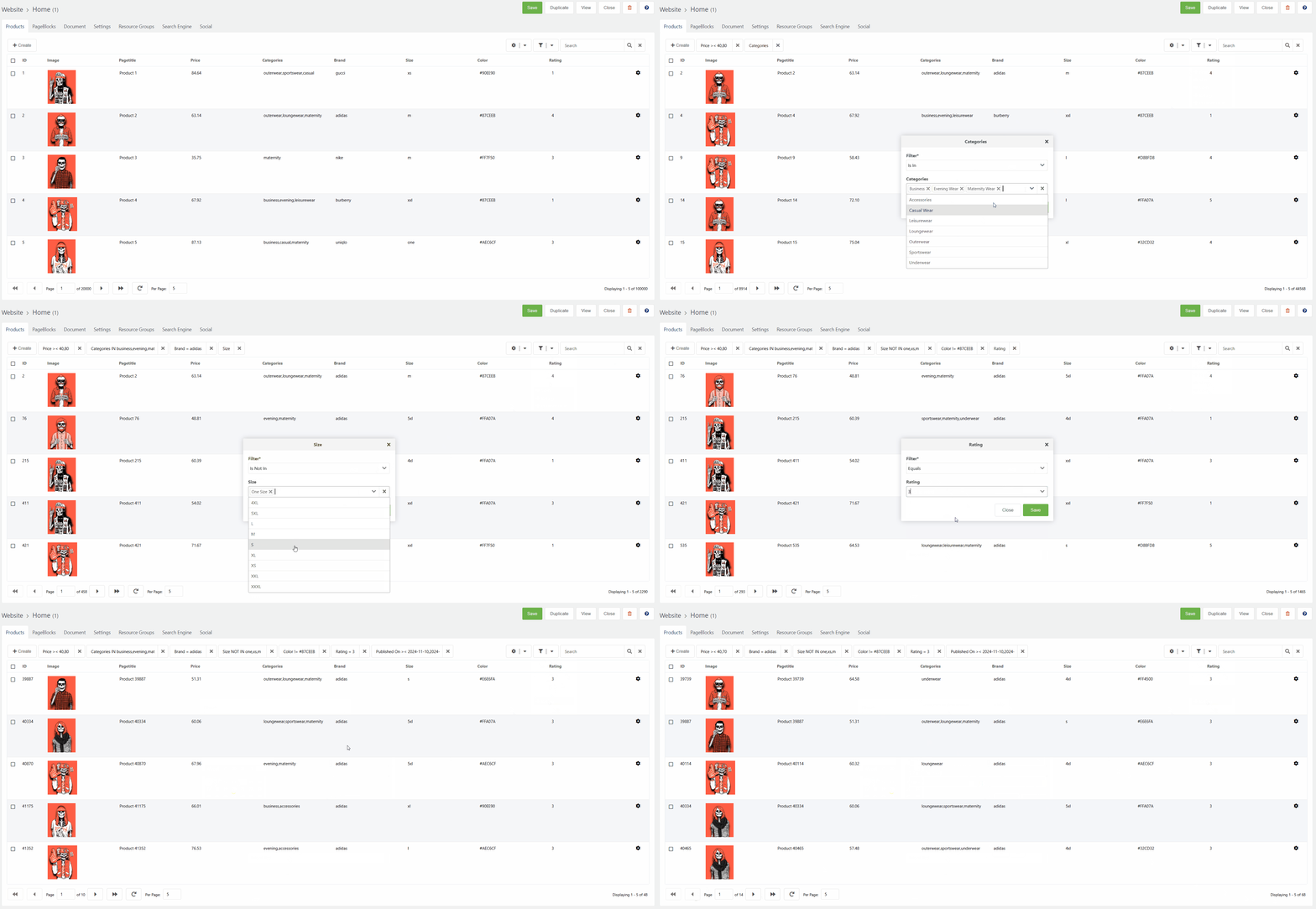
A list like that can be filtered and sorted as a full catalog: