
🚀 Installation
There are two packages: free and paid. Same tree, built from two different sets of files — the paid code is physically absent from the free package, not locked behind a switch. Both carry the same package name (pageblocks), so the paid one installs over the free one as an ordinary update. See Free and PRO.
Coming to the MODX extras directory
Once it is there the component installs like any other, with no provider. For now it comes from ours — the steps are below.
Installing
1️⃣ Open the installer
Extras → Installer ⚙️
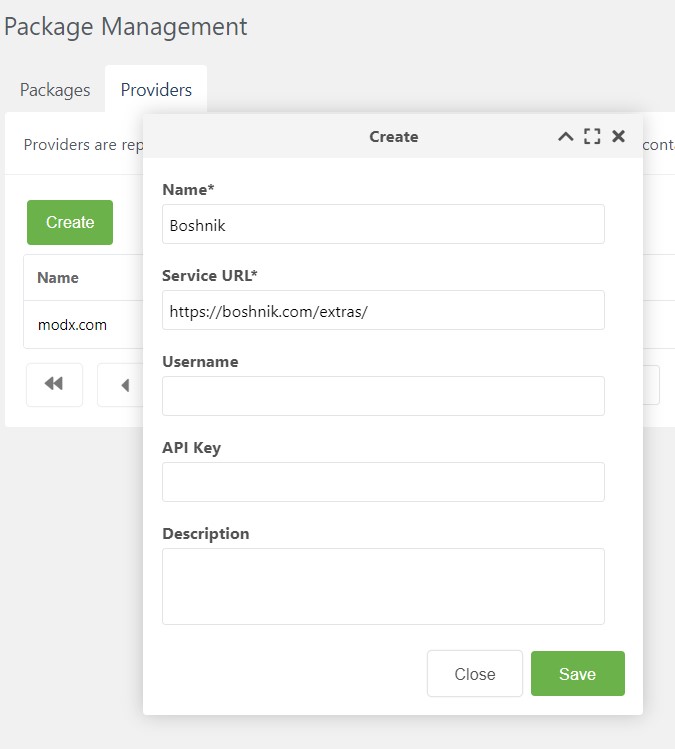
2️⃣ Create a provider 🌐
Go to the Providers tab and add a new one:
- 🏷️ Name: Boshnik
- 🔗 Service URL: https://boshnik.com/extras/
3️⃣ Open the provider 📂
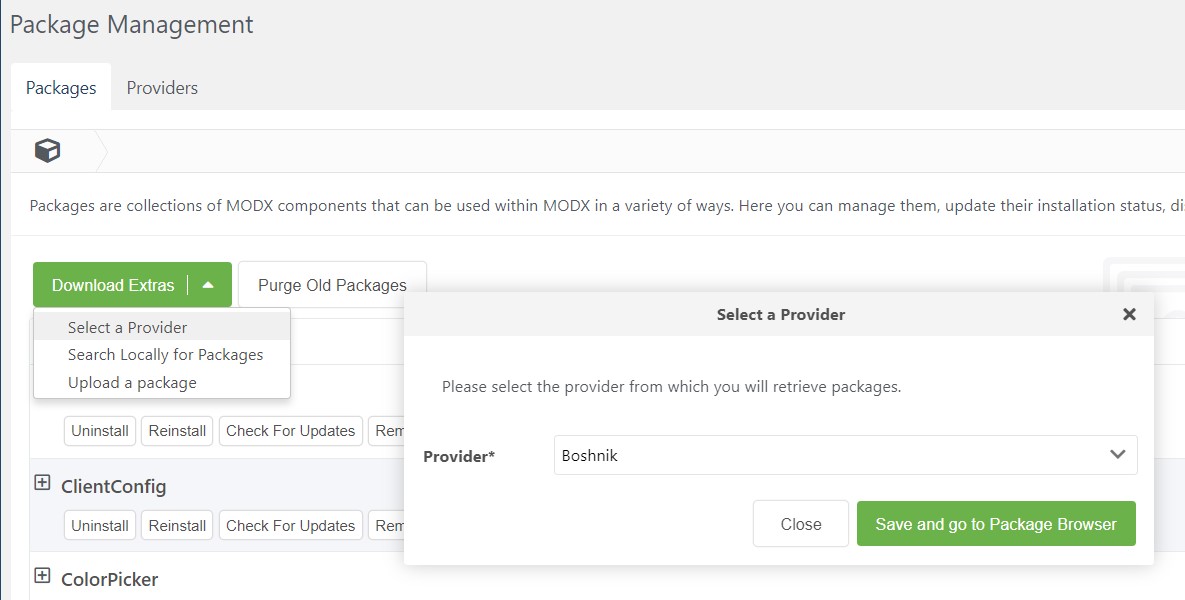
4️⃣ Install the component 📦
The provider's component list opens. Pick PageBlocks and install it.
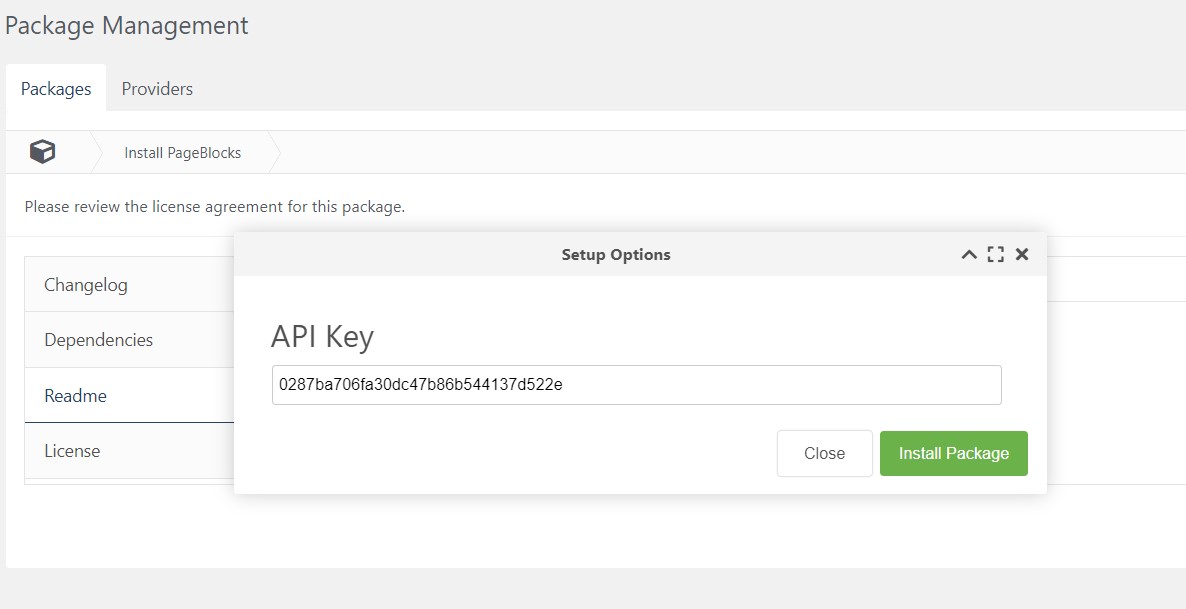
🔑 The paid package's install window has a Customer API key field — that is where the key you received with your purchase goes. The free package has no such field: there is nowhere for a key to land, and it installs without further questions.
If the site already has PageBlocks 2.x
The install window opens with a red warning on it. PageBlocks 3 is a different component under the same package name, not a newer version of the one you have: the database schema is incompatible, 3.0 will not see your blocks, fields and tables, and the manager along with the pages built on them stops working. There is no automatic migration and no way back other than a database dump.
The warning does not block the button — it is shown before any file is unpacked, so closing the window leaves the site exactly as it was. The one supported path is a clean install of PageBlocks 3 on a separate site and moving the content over by hand; 2.x on this site keeps working.
The check looks at the tables in the database, not at the version in the package list: that record can be deleted while the tables stay, and installing "from scratch" over those tables breaks the site just the same.
Watch the install console for a migration error
The schema is created by migrations the installer runs through the PHP CLI binary. If that fails — the component's files belong to another user, or the host has exec() disabled — the reason goes into the MODX error log in red and the component will misbehave. Every manager page then shows a Database schema banner naming the migrations that were not applied, with the command to run by hand from the site root.
Upgrading from free to PRO
Do not uninstall the free version — install the paid package over it. To MODX that is an update: the editions share a package name, and the paid version number is always higher (free lives in 2.x, paid in 3.x).
- Buy a license — you receive an
api_key. - Install the paid package from the same provider. Paste the key into the Customer API key field in the install window.
- Clear the MODX cache and reload the manager with
Ctrl+F5.
The install tops up files the free package does not carry at all: license verification, the paid controllers and routes, the panels for the paid tabs. That is why pasting a key into a setting is not enough on its own — without those files there is nothing to switch on.
Your data stays where it is
Blocks, tables, fields and their contents are not touched: the update copies files and creates the missing settings, not database rows. You do not have to name your domain when buying, the component supplies it itself. Details about the key are on the License page.
After installing
Two things the installer cannot do for you:
- Clear the MODX cache and reload the manager with
Ctrl+F5. PHP and JavaScript are cached, and a stale copy looks exactly like a broken install. - Check the plugin's events if you are upgrading. New releases subscribe to new MODX events, and an update does not always attach them — System → Events, or the Events tab on the
PageBlocksplugin. - Patch
core/App/by hand when a release says so. The installer copies the application-layer template intocore/App/but never overwrites a file that is already there — that directory is the site's own code, customisations in it must survive. The flip side is that a shipped fix to a file living there does not arrive on its own; the changelog says which file to patch under its migration notes.
🎉 That's it. Start with What is PageBlocks? or go straight to the constructor.