
Blocks
A block is a type of page section: a set of fields plus the template that renders them. The type is defined once in the constructor; after that an editor drops it onto any page and fills it in.
PageBlocks → Constructor → Blocks.

The block type
| Setting | What it does |
|---|---|
| Name | How the block is labeled in the add-block catalog |
| Chunk | Template file name, without the extension. Required |
| Chunk path | A folder of your own instead of the default one |
| Preview image | Picture of the layout on the card in the add-block catalog. Optional — without it the card stays text only. A path from the site root or a full URL |
| Description | A hint for the editor in the catalog |
| Group | Splits the catalog into sections |
Then three tabs: Fields — what the block is made of, Tabs — how those fields are grouped in the form, Permissions — where the block may be placed.
"Chunk" means a file, not a MODX chunk
The name misleads: the MODX manager's Chunk element has nothing to do with this. A block looks for a template file.
$path === ''
    ? view('file:chunks/' . $chunk)          // core/App/elements/chunks/<name>.tpl
    : view('path:' . $path . '/' . $chunk);  // <path>/<name>.tpl
Leave Chunk path empty and the file comes from core/App/elements/chunks/. Fill it in and it comes from the folder you named.
A missing file makes the block disappear quietly
A missing template does not break the page: view() returns an empty string and writes [Fenom]: Template … not found to the MODX log. The block is on the page, it is in the database, and it is nowhere on the site. When a block "doesn't render", check that the chunk name matches the file name before anything else.
Fields reach the template by name
A field's name is the variable name:
<section class="hero" style="background-image:url({$background.url})">
    <div class="container">
        <h1>{$title}</h1>
        <p>{$description}</p>
    </div>
</section>
Here title, description and background are what you defined on the Fields tab. A file or image field also carries url, width, height and title.
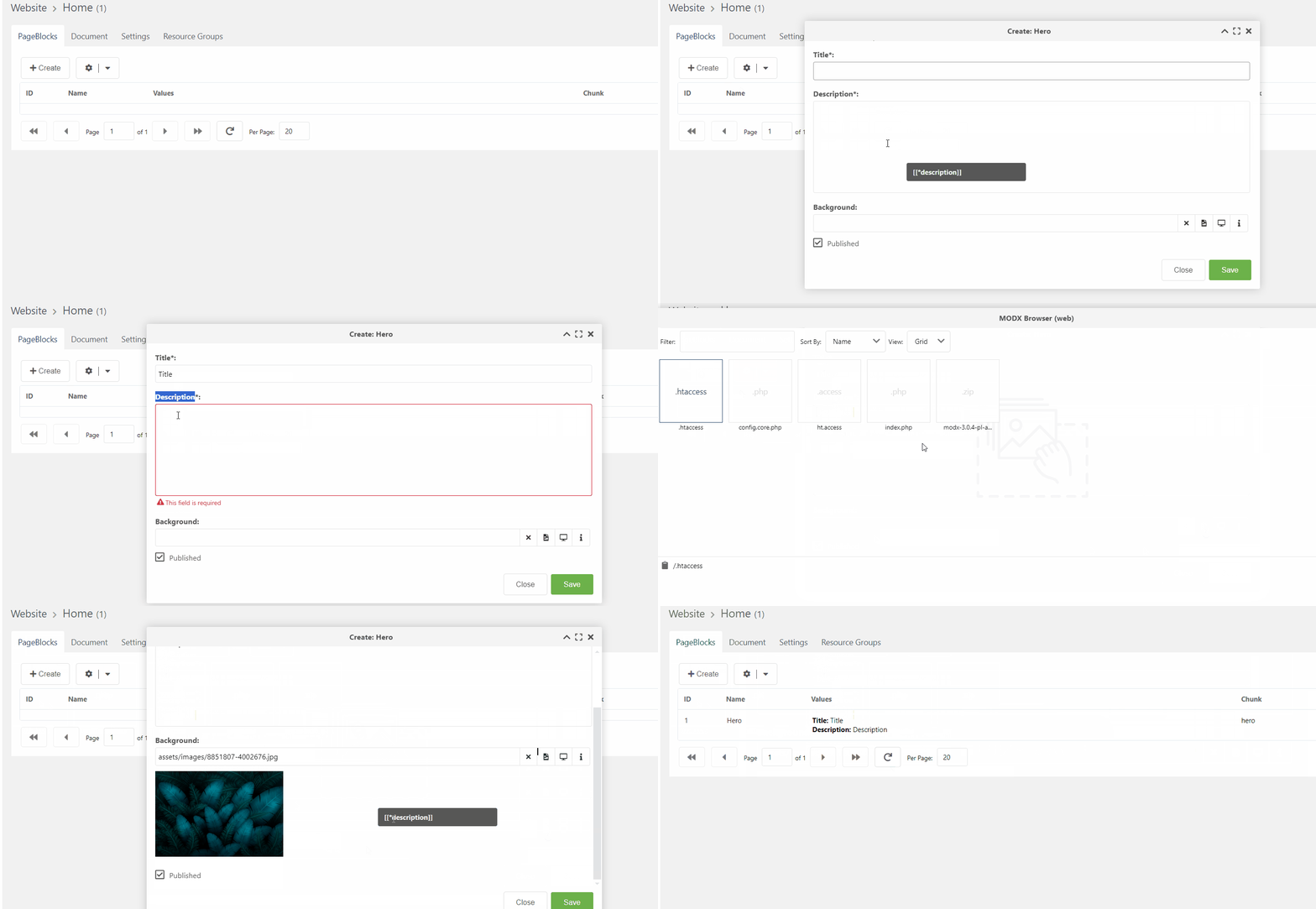
Permissions
Six conditions: templates, parents, resources, user groups, users and model. An empty condition restricts nothing.
Permissions decide where a block may be placed, not who may see it
The conditions apply in the manager: they keep the block out of the add-block catalog where it does not belong. They do not hide a block that is already placed — the front end renders everything that is published.
To show a block to some visitors and not others, this is the wrong tool; see UTM tags and the context.
Reusable blocks (PRO)
When the same block belongs on several pages and has to change on all of them at once, it belongs in Reusable blocks.
The section is visible in the free edition, but inserting a reusable block and linking or unlinking one are paid: a block on a page is the free constructor, a single block across many pages is what is paid for.
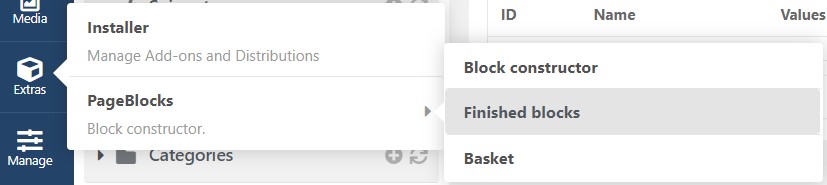
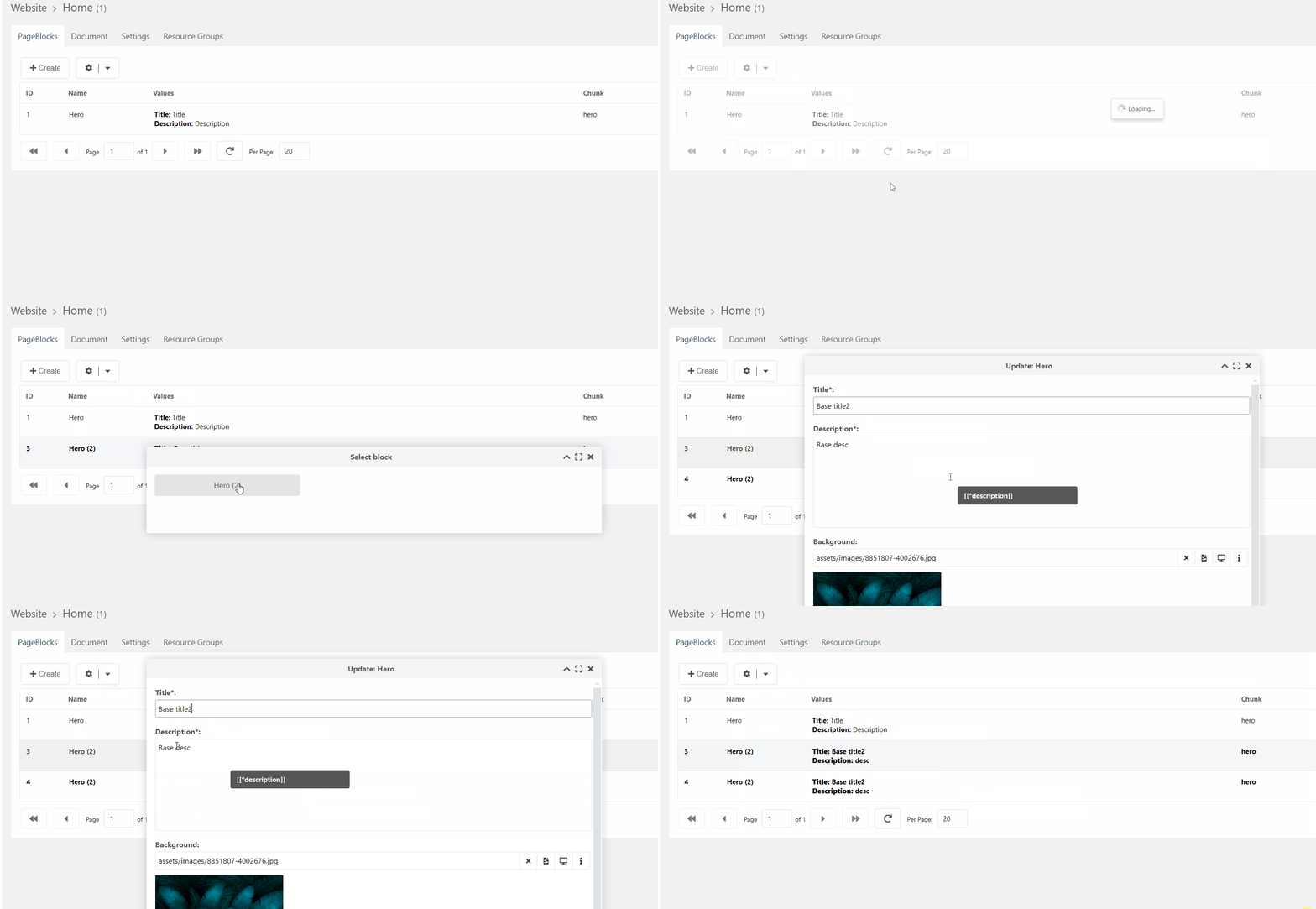
A block from there is placed like any other, but stays tied to the original.
Synchronisation
The tie can also be made for a block that is already on a page, by the id of the block to sync with.
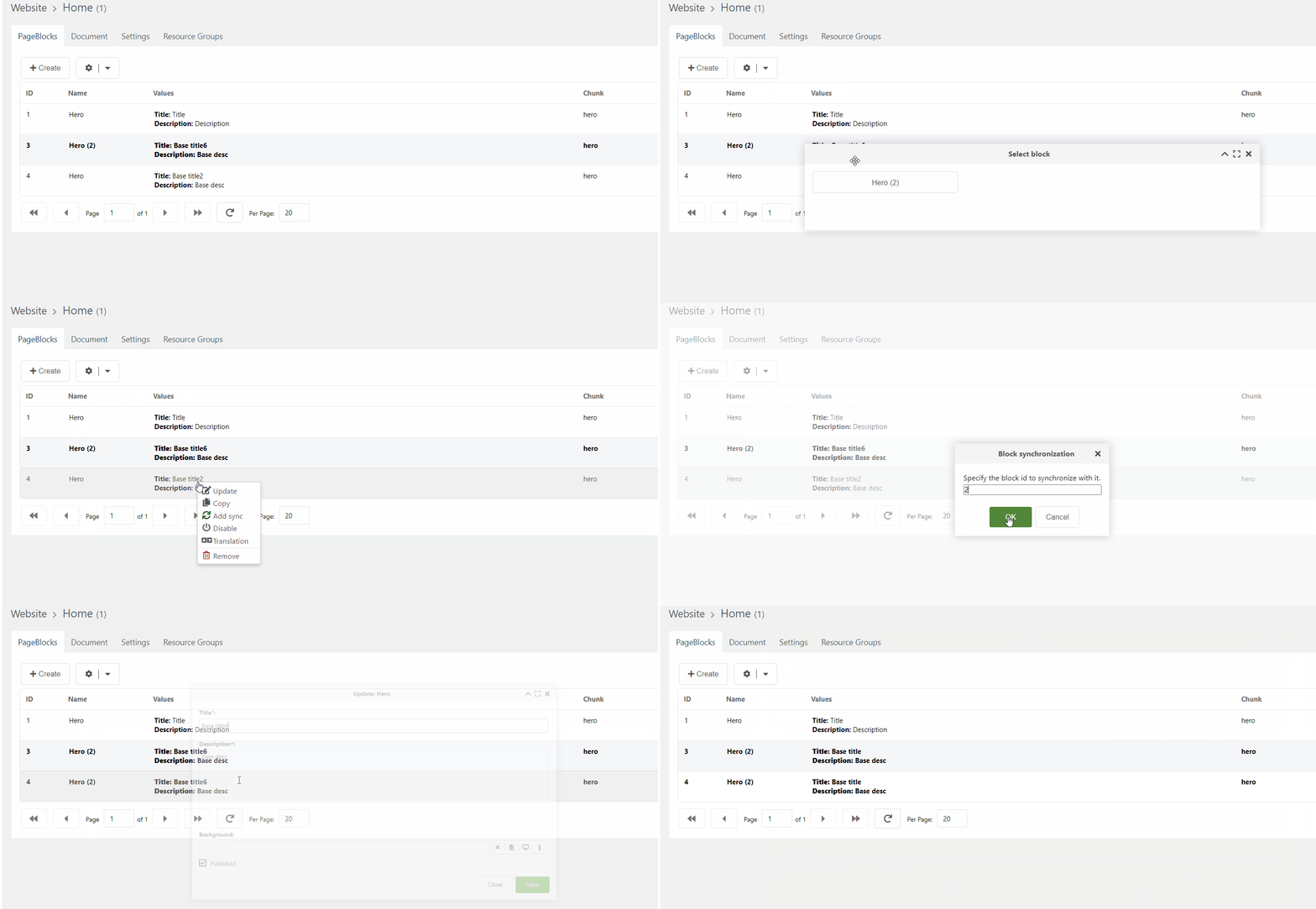
Or removed, making the block independent again.
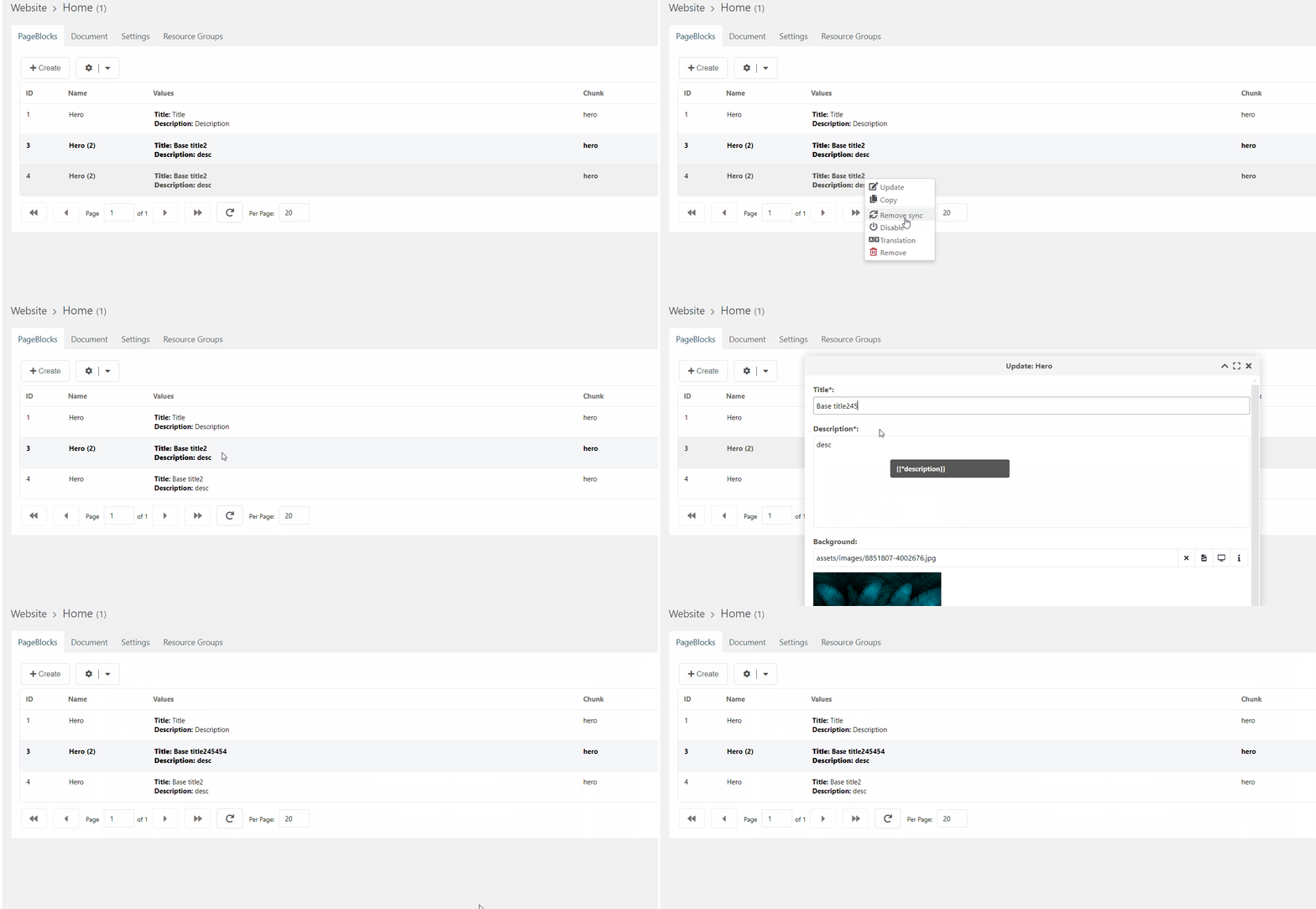
What to know about it:
- Values travel, structure does not. Fields are described by the block type and shared by definition; synchronisation carries their contents.
- Editing any copy reaches all of them, the original included. There is no leader and no follower — there is a shared hub the copies hang off.
- The set of fields can be narrowed: then only the chosen ones travel and the rest stay local to each copy.
- Chains are refused. Syncing with a block that is itself synced is rejected with a message.
Deleting the original does not delete the copies
The copies stay on their pages pointing at a block that no longer exists: the content is intact, but synchronisation quietly stops. Restoring the block from the recycle bin brings it back.
Order on the page
Blocks are sorted by dragging, and the order lives in menuindex. Drop a block and the new order goes to the server at once and is renumbered for every block on the page.